If an error appears when saving Theme Options, check the failed request in your browser’s developer tools to identify the issue.
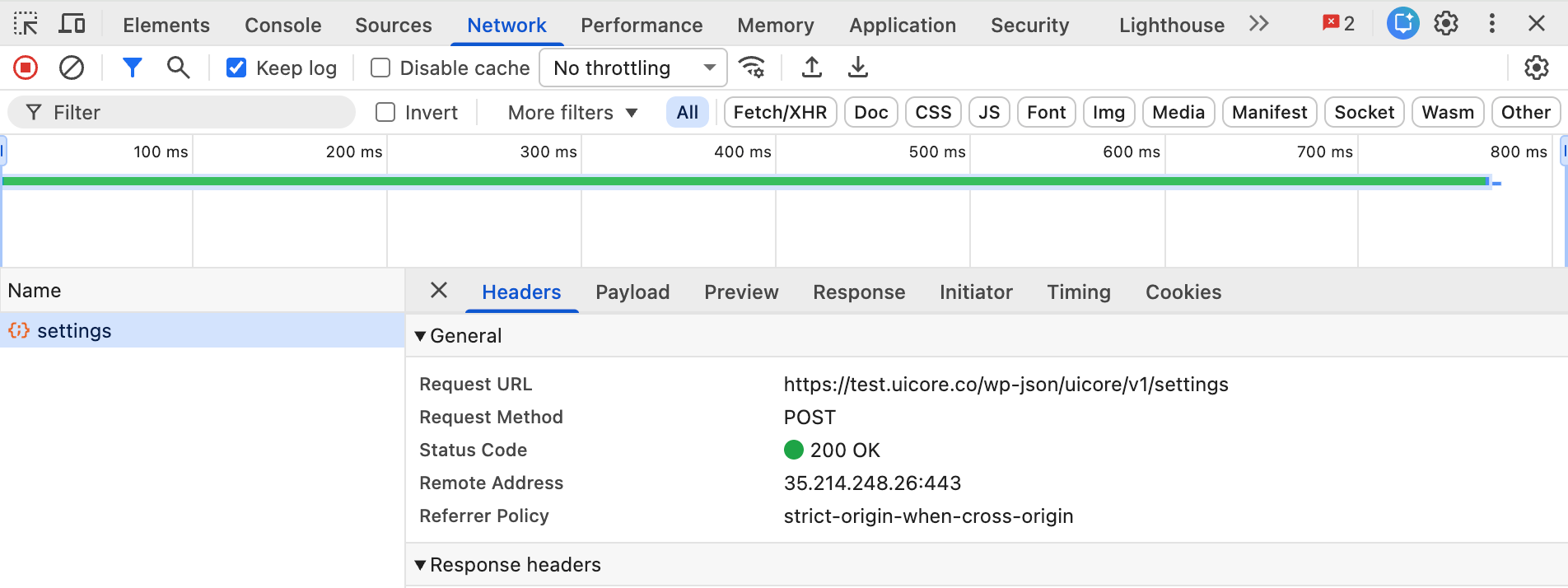
- Right-click anywhere on the page and select Inspect or Inspect Element.
- Open the Network tab.
- Click Save in Theme Options.
- Find the request named Settings and click it.
- Open the Headers tab and check the Status Code.
403 — Forbidden
A 403 status code means the server rejected the request. This may be caused by WordPress permissions or authentication issues, a security plugin, or a server firewall rule.
To troubleshoot:
- Go to Settings → Permalinks in your WordPress dashboard and click Save Changes, then try saving Theme Options again.
- Temporarily disable any security plugins
- If the issue persists, ask your hosting provider to check whether a security rule is blocking the request. Share the request URL and ask them to allow the specific legitimate action.
500 — Internal Server Error
A 500 status code means the server encountered an error while processing the request. Possible causes include a PHP fatal error, a plugin conflict, or an exhausted PHP memory limit.
To troubleshoot:
- Follow our guide to enabling WordPress debugging.
- Reproduce the save error, then check the debug log for the underlying cause.
- If the log reports “Allowed memory size exhausted”, follow our guide to increasing the PHP memory limit.
- For other errors, use the log details to identify the affected plugin, theme, or server component and determine the appropriate fix.